How to Use Semrush Site Audit for AI Search


Your redesigned site has just gone live, or you have just taken over an online store. You run Semrush Site Audit and get back a health score, thousands of issues and a few dozen red “errors”. The hard part is deciding what to fix first, because fixing some of those errors achieves nothing.
Since July 2025 Site Audit has gradually gained a set of AI search features. The Overview now has AI Search Health, which shows which pages block the crawlers of ChatGPT, Perplexity and Claude. The crawler can be switched to OpenAI-Search. The issue list has a new AI Search category that checks llms.txt, paragraph length and semantic HTML.
Most Site Audit tutorials online still show the old interface, skip these AI search features and rarely explain how to check the numbers in the report. This guide uses two real audits of linusseo.com and walks through the settings, Overview, Issues, Crawled Pages, Statistics, Thematic Reports and JS Impact on the current interface. It also explains which of the new checks are worth acting on and which you can ignore.
Key points
- A technical health check now has one more question to answer: can AI search crawlers reach your content? Look at AI Search Health on the Overview and the list of blocked AI bots. The list has 8 crawlers and does not include training crawlers such as GPTBot and ClaudeBot.
- You can choose OpenAI-Search as the crawler. Shopify stores need to generate a Web Bot Auth signature in the admin and enter it in the settings, otherwise the Semrush crawler may be blocked as an unknown bot.
- The AI Search category grew from 4 checks in July 2025 to 9, all at the Notice level. The outdated content check reads the Last-Modified response header, and the readability check may use English rules, so both results need human judgment.
- Expand Errors to see the cause before you act. All 18 structured data errors on this site are missing rating fields, which only affects rich result eligibility. Do not add fake ratings to pass the check.
- The Core Web Vitals report is lab data from Lighthouse emulating a phone on 10 pages. To judge whether pages pass, use the real-user data in Search Console.
What’s different about a technical audit in 2026
A technical SEO audit used to answer one question: can Googlebot crawl, understand and index your pages without trouble? Now there is a second one: can AI search crawlers get your content, and once they have it, can they lift an answer straight out of it? Most of the changes to Semrush Site Audit since July 2025 are about this. The Overview gained AI Search Health, the crawler can be set to OpenAI-Search, the issue list has an AI Search category, and the settings have a Web Bot Auth signature. Three reasons explain the shift.
First, the crawler to check is no longer one bot but a group. The dropdown next to AI Search Health lists the 8 crawlers Semrush checks: ChatGPT-User, OAI-SearchBot, Googlebot, Google-Extended, PerplexityBot, Perplexity-User, Claude-User and Claude-SearchBot. Apart from Google-Extended, every bot on the list is a search crawler or one that fetches on a user’s behalf. Training crawlers such as GPTBot and ClaudeBot are not on it, so blocking training crawlers does not lower this score. Google-Extended is on the list, but Google’s crawler documentation states that it only controls Gemini training and grounding in Gemini apps, and does not affect a site’s indexing or ranking in Google Search. So before you edit robots.txt based on this list, work out which purpose each crawler serves.
Second, platforms have started asking tools to prove who they are. Semrush notes in the audit settings that platforms such as Shopify may block unrecognized crawlers by default. Shopify launched crawler signatures in August 2025: the merchant generates a signature in the admin and enters it in an audit or testing tool, and the tool’s requests can then prove they are authorized by the merchant. The mechanism is called Web Bot Auth. Shopify’s help docs also say that search engine and LLM crawlers can index a store without a signature. The signature therefore solves access for third-party tools. If a Shopify store’s audit report shows far fewer pages than expected, or many pages fail to crawl, check first whether the signature is missing.
Third, most AI crawlers do not execute JavaScript. Data from Vercel and MERJ in 2024 shows that major AI crawlers including OAI-SearchBot, ChatGPT-User, GPTBot and ClaudeBot download JS files but do not run them. Googlebot does render JavaScript, so a page whose main content only appears through JS can look fine in Google and be empty in ChatGPT search. The JS Impact report in Site Audit compares a page before and after rendering. After this site was rerun with JS rendering on, 191 of 193 pages changed between the raw and rendered versions, but the title, description, canonical, meta robots and structured data did not change. That means this key information is all in the raw HTML, where crawlers that do not execute JavaScript can still get it.
These new checks have limits you should know before using them. Semrush has not published how AI Search Health is weighted. The llms.txt, paragraph length and readability checks in the AI Search category are Semrush’s own rules, and Google’s documentation on AI features says that appearing in AI Overviews and AI Mode requires no additional machine-readable files, AI text files or special markup. Treat these notices as a reference for writing and structure, and do not change pages just to raise the score.
On this point Semrush and Google’s documentation contradict each other. When Semrush released the AI Search category in July 2025, it wrote that a site without a clear llms.txt risks being misread by AI systems. Google’s documentation says no such file is needed. This site has an llms.txt and passes the check, but that does not show llms.txt is useful for Google’s AI features.
For practitioners: how the AI search checks were added step by step
The table is from public sources. The paragraph after it is an inference from those sources; Semrush has not described it this way.
| Date | Event |
|---|---|
| 2025-07-01 | Semrush added an AI Search category to Site Audit. It had only 1 new check (Llms.txt not found); the other 3 were existing anchor text and internal link checks. Available on all plans |
| 2025-08-29 | Shopify launched crawler access keys, based on Web Bot Auth |
| 2025-10-29 | Semrush One launched, bundling the SEO Toolkit and the AI Visibility Toolkit into one plan |
| 2025-11-19 | Adobe announced it would acquire Semrush for about $1.9 billion in cash |
| 2026-11 | Our test shows 9 checks in the AI Search category, 6 of them with the “new” badge. The Overview has AI Search Health and a list of blocked AI bots, the crawler can be set to OpenAI-Search, and the settings include a Web Bot Auth signature |
Inference: Site Audit is a report many teams run on a schedule. Adding AI search checks and an AI Search Health score here puts Semrush’s AI visibility products where users already look every day. Every row of Content not optimized has an Optimize with AI button that sends the issue straight to Semrush’s Content Optimizer, which follows the same idea. Most of these rules come from Semrush’s own research, not from standards published by search engines, so a high or low score does not equal actual performance in AI search.
Create a project and configure the audit: choose whose eyes you see the site with
Site Audit answers this question: what technical obstacles will search engines and AI crawlers hit when they crawl your site? It crawls the whole site according to your settings and then runs more than 140 checks to produce an issue list.
Where to find it: in the left menu, SEO → Site Audit (under the Site Performance group). Click Create project and enter your domain. For an existing project, click the gear icon at the top right of the report to open the settings.
Setup has five steps. Everything except the first can be skipped so you can start the crawl right away. Below are the options that are easy to overlook but change the results directly.
① General: Crawl scope (the whole domain, a subdomain or a subfolder), the page limit per audit, and where to find pages (follow internal links from the homepage, read the sitemaps listed in robots.txt, enter a sitemap URL manually, or upload a list of URLs). Crawling only through internal links misses orphan pages. To check whether the pages in your sitemap have problems, choose a sitemap source.

② Crawler:
- User agent: Pick one of three: SiteAuditBot Desktop, SiteAuditBot Mobile (the default) or OpenAI-Search.
- Crawl delay: The minimum delay is about one page per second and is the fastest. 1 URL per 2 seconds suits sites on weak servers. Respect robots.txt follows the crawl-delay you set in robots.txt.
- JS rendering: When on, the crawler executes JavaScript like a browser and then analyzes the rendered page, and the results feed the JS Impact report. It requires a Guru or Business plan.
③ Allow/disallow rules and ④ URL parameter rules: Exclude admin pages, internal search results and URLs with tracking parameters to save page quota.

⑤ Restrictions to bypass:
- Bypass disallow in robots.txt and robots meta tag: Checks whether the pages you have blocked have problems of their own, such as a staging directory before launch.
- Crawl with your credentials: For staging sites that require a login.
- Crawl with Web Bot Auth signature: For a Shopify store, first create a signature in the admin under Online Store > Preferences > Crawler access. Choose the domain and validity period (up to 3 months; you must create a new one when it expires). Then enter the three values here: Signature Agent (for example
https://shopify.com), Signature Input and Signature. The Semrush crawler can then prove it is authorized and will not be blocked by the platform as an unknown bot.
Tip: Semrush’s help docs recommend setting the user agent to OpenAI-Search to see your site the way ChatGPT search sees it. You can first run an audit with the default mobile crawler as a baseline, then change only the user agent, leave every other setting as it is, and run a second one. Use Compare Crawls to see the difference. If OpenAI-Search crawls clearly fewer pages, or extra 4xx or 5xx errors appear, your server or firewall is restricting that crawler.
Overview: two scores first, then two lists
The Overview opens by default when the crawl finishes. The tabs along the top of the report are Overview, Issues, Crawled Pages, Statistics, Compare Crawls, Progress and JS Impact; this guide follows that order, and the Thematic Reports are reached from the lower half of the Overview. A line at the top states the conditions of this audit: when it was updated, which crawler was used (Mobile / Desktop / OpenAI-Search), whether JS rendering was on, and how many pages were crawled. Before comparing with the previous audit, confirm this line has not changed. Otherwise a rise or fall in the score may only come from different settings.

Site Health: An overall score based on the number and severity of issues. The Top-10% websites figure next to it is the average score of the top 10% of sites in Semrush’s data. This site scored 82% this time, against 92% for the top 10%.
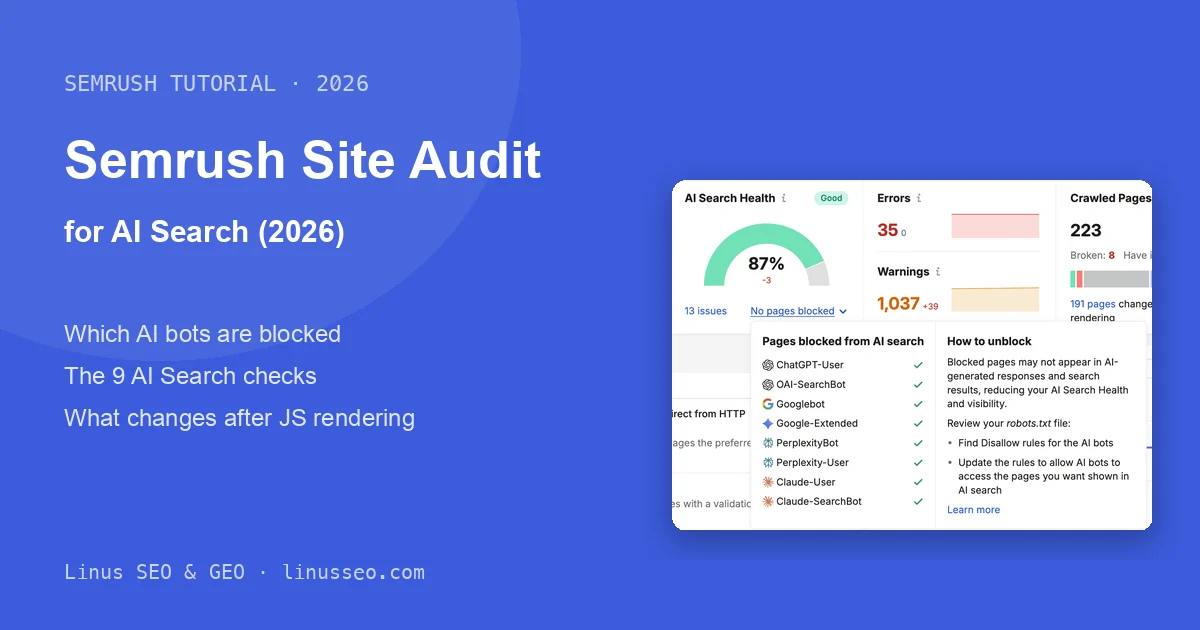
AI Search Health: A new score shown next to Site Health. The help docs say it has three components: the results of the AI search checks, whether AI crawlers can access the site (whether robots.txt blocks them), and technical readiness (structured data, crawlable navigation, internal links, llms.txt). Click the “13 issues” link below the score and you land on the AI Search category of the issue list. The number does not match the count in that category, which has 1,225 links without anchor text alone. In both audits it equalled the number of pages flagged Content not optimized (8 on November 6, 13 on November 8), and Semrush does not say how it is calculated.
Blocked pages: Below AI Search Health it says “No pages blocked” or shows the number of blocked pages. Click it and the left side lists the 8 crawlers and how many pages each is blocked from. The How to unblock panel on the right only tells you to check the disallow rules for AI crawlers in robots.txt. This is the quickest place to check whether robots.txt is accidentally blocking AI crawlers.

Errors, Warnings and Top Issues: Issues come in three levels. Errors are the most severe, followed by Warnings and Notices. Top Issues lists only 5, ranked by severity and the number of affected pages. Those tagged AI Search belong to the new category. In projects with JS rendering on, the Crawled Pages card at the top right also has a line showing how many pages changed after rendering. On this site it reads “191 pages changed after JS rendering”, and clicking it opens the JS Impact report.
Pages to Improve: A list in the new Overview that groups issues by page. Each row shows the errors, warnings and notices for that page. The people who fix pages usually split the work by URL, so this list is easier to assign from than a view by issue.
Issue Trend and Thematic Reports are in the lower half of the page. The trend chart can show either the health score or the total number of issues. Thematic Reports score crawlability, HTTPS, international SEO, Core Web Vitals, site performance, internal linking and markup separately, and are covered in their own section below.
For practitioners: the buttons on the Overview
- Rerun campaign: Reruns the audit immediately with the current settings. The gear menu also has Stop and save results (stop and keep what has been crawled so far) and Cancel crawling.
- Data Studio: Opens the Semrush connector for Google Data Studio (now Looker Studio) so you can build a dashboard on the Overview data.
- PDF / Export / Share: Export a PDF report, export the data, or share it with other users.
- Each issue count is marked with “new issues”. Click it to sort by discovery date, newest first, which is useful for checking only the new issues after a release.
Issues: prioritize by category, then decide on each one
The Issues page lists every issue found in this audit. Along the top you can filter by category (All, AI Search, Crawlability, Content, Meta tags and so on, where the number is how many checks in each category have issues) and by severity (Errors, Warnings, Notices). The Triggered checks filter chip is active by default, yet opening a category such as AI Search also lists the checks that passed below the triggered ones (showing 0 pages or Learn more), which tells you what Semrush actually checks.
AI Search category: 9 checks, 6 of them new

Switch to the AI Search category and you see 9 checks in total (4 triggered and 5 passed), all at the Notice level. Six of them carry the “new” badge. The criteria below are summarized from each check’s description:
| New check | Criterion in Semrush’s description | Result on this site |
|---|---|---|
| pages require content optimization | Paragraphs too long, low readability and similar, with a reason given per page | 13 pages failed |
| Llms.txt not found | Whether llms.txt can be reached at the site root | Passed |
| Llms.txt file has formatting issues | Whether it follows the llmstxt.org format | Passed |
| pages contain too much content | The page is long enough that AI may drop part of it during processing | Passed |
| pages have outdated content | The Last-Modified response header is older than 6 months | Passed |
| pages have low semantic HTML usage | Semantic tags make up a low share of all tags | Passed |
The other 3 are existing checks moved into this category: links with no anchor text, links with non-descriptive anchor text (such as “click here”), and pages with only one internal link. Each of their descriptions now has a new AI Search section explaining how the issue affects AI search.
Pay attention to how the outdated content check decides. It reads the Last-Modified header returned by the server, not the date shown on the page. This site is hosted on Vercel. Checking 2023 posts with curl shows a Last-Modified from the day of the latest deployment, and so does a profile photo that has not changed in weeks, so every page on this site passes. Many static sites and CDNs behave the same way, so passing this check does not mean the content is actually fresh. Conversely, if it flags a large number of outdated pages, first check how your server sets Last-Modified. The description also says that old pages can still appear in AI answers as long as they remain relevant and trustworthy, so you can ignore this notice when the content does not need updating.
On this audit, links with no anchor text came to 1,225, the highest count in the AI Search category. Expanding it shows that most of the link URLs are in-page anchors such as #个人简介 and #经历 (heading IDs on the Chinese pages). The reason is that the Hexo theme this site uses puts an empty <a class="headerlink"> before every heading, which only shows an icon on hover and contains no text. There are also a few bare links that use the URL itself as the link text. Heading anchors only jump within the page and do not point to other pages, so this site treats them as a notice it can ignore. You will see the same thing with WordPress table of contents plugins or other themes that add heading anchors automatically. The links that do need fixing are those pointing to other pages with no text, such as icon-only buttons. Give them descriptive text.
Links with non-descriptive anchor text came to 35, all of them the “Learn more” link in the cookie banner at the bottom of the English pages. JavaScript inserts this banner, and in the previous audit, run without JS rendering, this check showed 0. With JS rendering on, links that third-party scripts insert into the page are checked as well, so when a batch of new issues suddenly appears, first see whether they come from scripts like this.
Issue details: read the cause before deciding whether to fix
Click into an issue and the top of the page has three explanations: About the issue, AI Search (the new block) and How to fix. Below them is the list of failed and passed pages, and each row can be expanded to show the specific reason.

Take Content not optimized as an example. The 13 failed pages on this site fall into three groups:
- 7 English article pages: Paragraphs are too long.
- 2 Chinese article pages: Low readability, with the suggestion to use short sentences, choose simpler words, and use more lists and subheadings.
- 4 tool pages: Poor heading hierarchy.
Each row has an Optimize with AI button on the right. The issue description says to improve the content with AI using Semrush’s Content Optimizer.
The tool page result is a real problem, and it only showed up with JS rendering on. The raw HTML of this site’s tool pages has headings in the right order, but after the page loads, the tool interface inserted by the script contains H3s that sit after the H1 and before the first H2, so the heading hierarchy jumps straight from H1 to H3. The AI Citability Checker page inserts a sample result whose headings “Page checks” and “Section by section” are H3s. The Product Schema Checker page inserts a Shopify code panel that is hidden by default. In the previous audit, run without JS rendering, these 4 pages were not flagged.
The readability result needs your own judgment. Semrush has not published its readability algorithm, and common readability formulas such as Flesch are calculated from English syllables and word length. It follows that this check may not suit Chinese pages. A Chinese-language site that gets this notice should read the page itself before deciding.
The issue details page also has a few actions at the top:
- Send to…: Sends the issue as a task to Trello, or to other task management tools through Zapier.
- Exclude check: Future audits stop reporting this check. Use it once you are sure a kind of notice does not apply to your site, such as the heading anchors above. Excluding removes the whole check. For example, after you exclude links with no anchor text, links to other pages that have no text are no longer reported either, so before you exclude a check, confirm that none of the remaining links in it need fixing.
- Advanced filters: Add include or exclude conditions on page URLs. Issues marked New in the Discovered column appeared for the first time in this audit.
Errors don’t always need fixing
This audit found 18 invalid structured data items on this site, at the Error level. Expanding them shows they are all Software App markup on the tool pages, missing the aggregateRating or review field. Google’s software app structured data documentation does list a rating or review as required, but that is a requirement for rich result eligibility: without it no star rating appears, and indexing is not affected. Ratings on this site come only from real users and are output only after 5 votes, and Google treats fabricated ratings as structured data spam. So these 18 items stay, and you should not add fake data just to pass the check.
Tip: Work through the issue list in this order: Errors, then Warnings, then Notices tagged AI Search, then other Notices. Expand each one to see the cause first, and fix it only once you have confirmed it applies to your site. Exclude the checks you have confirmed are irrelevant.
Crawled Pages: check issues and AI crawler status by page
The Issues page is organized by issue; Crawled Pages is organized by URL. The table shows 9 columns by default (you can choose from 22 in Manage columns). Two of them are worth watching:
- ILR (Internal LinkRank): Semrush’s measure of page importance based on internal link structure, from 0 to 100. The highest on this site is the weekly newsletter hub (100), with the homepage and the English newsletter hub at 99. If an important page has a low ILR, it is not getting enough internal links.
- Blocked AI Search Bots: A new column showing which AI crawlers cannot access the page. The filter above can switch straight to Blocked AI search bots to show only blocked pages.

On this site the column shows “–” in every row, which matches “No pages blocked” on the Overview. Do not confuse it with Blocked in the Issues column next to it. Of the top 100 rows sorted by ILR, 52 show Blocked in the Issues column, all of them Chinese and English archive, category and tag pages. These pages are not blocked in robots.txt, but they contain <meta name="robots" content="noindex, follow">, so Semrush does not list issue counts for them. When the Issues column shows Blocked, open the page source and check meta robots to confirm that the noindex is intentional.
Tip: In the Blocked AI search bots filter, pick OAI-SearchBot, PerplexityBot and Claude-SearchBot one at a time and check whether any article or product page you want cited by AI search shows up. On this site, picking OAI-SearchBot returned no pages.
Above the table you can switch to the Site Structure view, which lists the number of URLs and issues in each folder. It helps you find which directory the issues are concentrated in. On this site the /tools directory has only 11 URLs but 556 issues, about 50 per page, while the /tags directory has 31 URLs and only 31 issues. So this site should fix the tool page template first.
Statistics: read site-wide structural problems as proportions
The Statistics page charts all pages of the site as proportions across a dozen or so dimensions: status codes, crawl depth, sitemap coverage, number of internal links, structured data, canonical, hreflang, AMP and more. Click any chart to see the matching list of pages.

Several figures from this audit and how to read them:
- Sitemap coverage: The sitemap has 82 URLs. Of the crawled pages, 37% are in the sitemap and 63% are not. Those not in it are mainly archive, category and tag pages. This site deliberately leaves these noindex pages out of the sitemap, so a low share here is expected. If an article page that should be indexed is missing from the sitemap, check the rules that generate the sitemap.
- Crawl depth: Pages one click from the homepage make up 37%, two clicks 48% and three clicks 14%, with 0 beyond three clicks. Important pages are best kept within 3 clicks.
- Pages with only 1 internal link: 9%. To see which pages they are, open the “pages have only one incoming internal link” check on the Issues page, but the two places may count pages differently, so the numbers may not match.
- Markup: JSON-LD, Open Graph and Twitter Cards are each at 95%, and pages with no markup at all make up 5%.
Tip: Check the Statistics page once before and once after a redesign. Redesigns usually change templates, which affect whole classes of pages, and proportion charts show template-level changes more clearly than an issue list. For example, if the share of pages at crawl depth 4+ suddenly grows after a redesign, the navigation or pagination has usually broken.
Thematic Reports: look at one kind of issue at a time
The Thematic Reports in the lower half of the Overview split out crawlability, HTTPS, international SEO, Core Web Vitals, site performance, internal linking and markup, and score each separately. Each report is its own page, which makes it easy to hand one kind of issue to the right person: Core Web Vitals to front-end developers, international SEO to whoever runs the multilingual setup. Below are the two that are most easily misread.
Core Web Vitals: lab data on only 10 pages
This report scores 0% for this site. When you open it, the top of the page says “Powered by Lighthouse” and “Device emulated: Mobile”. In other words, this is lab data that Semrush measured with Lighthouse emulating a phone, not real-user data from the Chrome User Experience Report (CrUX). It also tests only 10 pages, and you can edit the list (Edit list).

LCP is Poor on all 10 pages of this site, with the homepage measured at 16.48 seconds. CLS is Good on 9 pages and Poor on 1 (the LLMs.txt Validator tool page, because its images have no explicit width and height). The top LCP recommendations are “Eliminate render-blocking resources”, “Remove Unused CSS” and “Ensure text remains visible during webfont load”, each covering all 10 pages. Six of the 10 pages tested this time are archive, category and tag pages, and however badly noindex pages like these score, it does not affect search. So the first time you open this report, use Edit list to replace them with representative pages of your important templates: the homepage, an article page, a tool page, a product page. Lab data is good for finding causes, such as which resource slows down the first screen. To judge whether pages pass, look at the real-user data in the Core Web Vitals report in Google Search Console or in PageSpeed Insights. Google uses the real-user data.
Markup: check which field makes an item “invalid”
The Markup report counts which structured data formats are used (JSON-LD, Microdata, Open Graph, Twitter Cards, Microformats), and how many items of each structured data type are valid or invalid. All 18 invalid items on this site are Software App markup on the tool pages, for the reason covered in the Issues section above: missing rating fields, which affects rich result eligibility.

Compare Crawls and Progress: changes between two audits
- Compare Crawls: Pick two audits to compare crawled pages, health score and the count of each kind of issue side by side, with how many were fixed and how many are new. Run one after a redesign, migration or bulk template change and compare it with the audit before the change to see quickly which new issues appeared. Before comparing, confirm that both audits used the same settings. For this site’s audits on November 6 and November 8, total issues went from 4,113 to 5,019. Within that, resources formatted as page links went from 2 to 494 and permanent redirects from 12 to 91. Between the two audits, however, JS rendering was turned on and new posts were published, so this table cannot show which changes came from the site itself.
- Progress: Charts the health score and each issue over time. You can add notes, for example writing “changed navigation” on a release date, so that when you look at the chart later you know what caused a turning point.

JS Impact: is the page AI crawlers see missing anything?
With JS rendering on, the crawler collects data from each page twice, once before rendering and once after, and this report compares the two. As noted above, most AI crawlers do not execute JavaScript, so the pre-rendering data is closer to the page AI crawlers see. JS rendering is only available on Guru and Business plans, and you need to turn it on in the settings and rerun the audit.

On this audit, 191 of 193 pages changed between the raw and rendered versions. The report lists the key elements separately:
- Outlinks: Changed on 188 pages. The works index page had 197 links before rendering and 211 after. Comparing it locally in a browser, the extra links include the ones in the cookie banner and a few links to posts and tags on this site.
- Word Count (only changes of 15% or more count): Changed on 156 pages. The tool pages changed the most. For example, the English Product Schema Checker page went from 1,674 words to 3,786, because the tool interface is generated by script. The tool descriptions are all in the raw HTML, so AI crawlers can still read what each tool does.
- Client-side redirects, meta robots, title, description, canonical, structured data: No change at all. These are the most important items, and no change means search engines and AI crawlers can get them without executing JavaScript.
Menus and widgets that appear after rendering are normal. If the main content, links, title or structured data only appear after rendering, AI crawlers that do not execute JavaScript cannot get that content, and the fix is server-side rendering or prerendering.
For practitioners: approximating the check without a Guru plan
- Open the page in a browser with JavaScript disabled, or
curlthe page source, and see whether the main content, main navigation and internal links are in the HTML. - This site’s free tool What AI Crawlers See requests the page once with a browser UA and once with each of several AI crawler UAs, and compares status codes and content statistics. It does not execute JavaScript.
- The URL Inspection tool in Google Search Console shows the HTML after Googlebot renders it, which you can compare against the raw source.
A full audit pass and day-to-day use
For a first audit of a site, you can follow this order:
- When creating the project, set the page limit high enough to cover the whole site, keep the default Website source (following internal links from the homepage), and exclude admin pages and URLs with tracking parameters. For a Shopify store, set up the Web Bot Auth signature first.
- When the crawl finishes, check the line at the top of the Overview and confirm the number of crawled pages is close to what you expect. A count that is clearly too low usually means the crawler was blocked, robots.txt stopped it, or internal links are broken.
- Check the crawler list under AI Search Health and confirm no AI search crawler you want to allow is being blocked by mistake.
- On the Issues page, work through Errors, then Warnings, then Notices tagged AI Search, then other Notices. Expand each one to see the cause and exclude the irrelevant checks.
- Open Thematic Reports as needed and assign them: Core Web Vitals to front-end developers, international SEO to whoever runs the multilingual setup, Markup to whoever owns structured data.
- In the settings, set the audit schedule to weekly (daily or one-off also work), and after each change use Compare Crawls to see new issues.
- From time to time, switch the page source to sitemaps and run again, then compare with the internal link crawl: pages in the sitemap that the link crawl cannot reach are orphan pages.
How to use it for SEO
- Regression checks after a release: Rerun manually after every template or navigation change and look at “new issues” by discovery date on the Issues page. New 4xx errors, redirect chains and canonical issues usually came in with that release.
- Assigning work: Use Pages to Improve on the Overview to assign pages to owners, or use Send to… in the issue details to push tasks to Trello.
How to use it for GEO
- Before and after robots.txt changes: Run an audit before changing robots.txt and another after, and compare the list of blocked AI bots. Tell search crawlers and training crawlers apart: apart from Google-Extended, everything on the list is a search crawler or one that fetches on a user’s behalf, and blocking them affects whether you are cited in the matching AI search.
- Use the AI Search category as a writing reference: Notices such as “Paragraphs are too long” and “Low semantic HTML usage” help both human and machine readers, so you can deal with them while updating old posts. There is no need to change pages for the score; Google says clearly that AI features need no special optimization.
- Pair it with checks outside Semrush: Site Audit’s AI Search category does not cover CDN blocking rules, official IP verification in server logs, GA4’s AI Assistant channel, or the Search Console and Bing AI reports. For the full 13-check workflow across 4 layers, see AI Search Audit: 13 Checks and Their Sources.
For practitioners: plan limits
- According to Semrush’s help docs, Pro can crawl 100,000 pages a month and up to 20,000 pages per audit; Guru 300,000 pages a month and 20,000 per audit; Business 1,000,000 pages a month and 100,000 per audit.
- JS rendering is only available on Guru and Business plans. With it on, crawls are slower and use more quota.
- This audit crawled 223 pages with JS rendering on and took about 55 minutes. The November 6 audit ran without JS rendering.
FAQ
What Site Health score is normal?
There is no universal standard. The Top-10% websites figure on the Overview can serve as a reference: this site scored 82% this time, against 92% for the top 10%. The score is more useful compared with your own previous audit, and the two audits need the same settings, otherwise a change in score may only reflect a different crawl scope or crawler.
If AI Search Health is high, will ChatGPT cite my site?
No. It measures technical readiness: whether AI crawlers can access the site and whether pages are structured in a way that is easy to understand. Whether you get cited also depends on the content itself, brand recognition and whether other sites mention you. Semrush has not published how this score is weighted either.
Does blocking GPTBot affect AI Search Health?
Inferring from the list we observed in this test, no. The blocked AI bots list only includes search crawlers and crawlers that fetch on a user’s behalf, such as ChatGPT-User, OAI-SearchBot, PerplexityBot and Claude-SearchBot. It does not include training crawlers such as GPTBot and ClaudeBot. If you want your content to appear in AI search but not be used for training, you can block only the training crawlers.
How is Site Audit different from Google Search Console?
Search Console data comes from Google itself: which pages are indexed, what errors Googlebot ran into, and real-user Core Web Vitals. Site Audit is Semrush’s crawler simulating a crawl by its own rules. It can find issues Search Console does not report, such as anchor text, duplicate titles and internal link structure, but what it sees is not necessarily what Google sees. Use both together, and when they conflict, go with Search Console.
Can I use Site Audit on a free account?
The help docs only list crawl limits for the three paid plans, Pro, Guru and Business, and say nothing about free accounts. Whether you can use it and how many pages you can crawl depend on Semrush’s pricing page and the actual limits in your account.
Semrush tutorial series
- Overview: Semrush Tutorial: The Complete Guide (2026)
- Keyword research: How to Use Semrush for Keyword Research
- Site Audit: How to Use Semrush Site Audit for AI Search (this article)
- Position Tracking: How to Use Semrush Position Tracking (2026)
How to Use Semrush Site Audit for AI Search