How to Use Semrush for Keyword Research


If you’ve done keyword research for an online store, you know the routine. You’re about to launch a new category, or want to rework the keywords for an existing one. You type one seed into the Keyword Magic Tool and get more than a hundred thousand results, with no clear idea which to keep. Once you’ve picked a batch, you still have to decide how many pages they need, and the list ends up parked in a spreadsheet.
This guide walks through Semrush’s two core keyword research tools: the Keyword Magic Tool to find and filter your terms, and the Keyword Strategy Builder (KSB) to organize them into pillar pages and subpages. You will learn how to cut through the noise, read the right difficulty metrics for your domain, and turn a single seed keyword into a practical content plan.
The main guide covers each tool only at a basic level, but keyword research is the part people use most and get wrong most often. Most existing tutorials still show older interfaces, skip the AI search modules and say little about checking the data, so these two tools get their own walkthrough here.
Key points
- Keyword research now produces a plan of topics and pages: one page covers a group of keywords with similar results, and AI search splits a single question into searches across subtopics.
- The Keyword Magic Tool now defaults to All Keywords, which mixes in many semantically related keywords that don’t contain your seed. To see variants of the seed itself, switch to Broad Match or Phrase Match.
- Topics and Groups in the left panel are two different clustering methods. Switching between them changes the keyword count, so the total at the top of the page is not a measure of demand.
- Enter your own domain and the table adds Potential Traffic and Personal Keyword Difficulty (PKD), and shows where you already rank. For choosing keywords, PKD is more useful than generic KD.
- KSB groups keywords into topics, pillar pages and subpages based on SERP similarity. It knows nothing about your product line, so review the structure before you use it.
What keyword research is for in 2026
The output of keyword research has changed. It used to be a list of keywords sorted by search volume. Now it is a plan of topics and pages: which topics to cover, how many pages each topic needs, and which keywords each page should target. Semrush’s recent changes point the same way. It launched Personal Keyword Difficulty (PKD) and KSB in 2024, and as of November 2026 the left panel of the Keyword Magic Tool opens on the Topics view by default. Three reasons explain the shift.
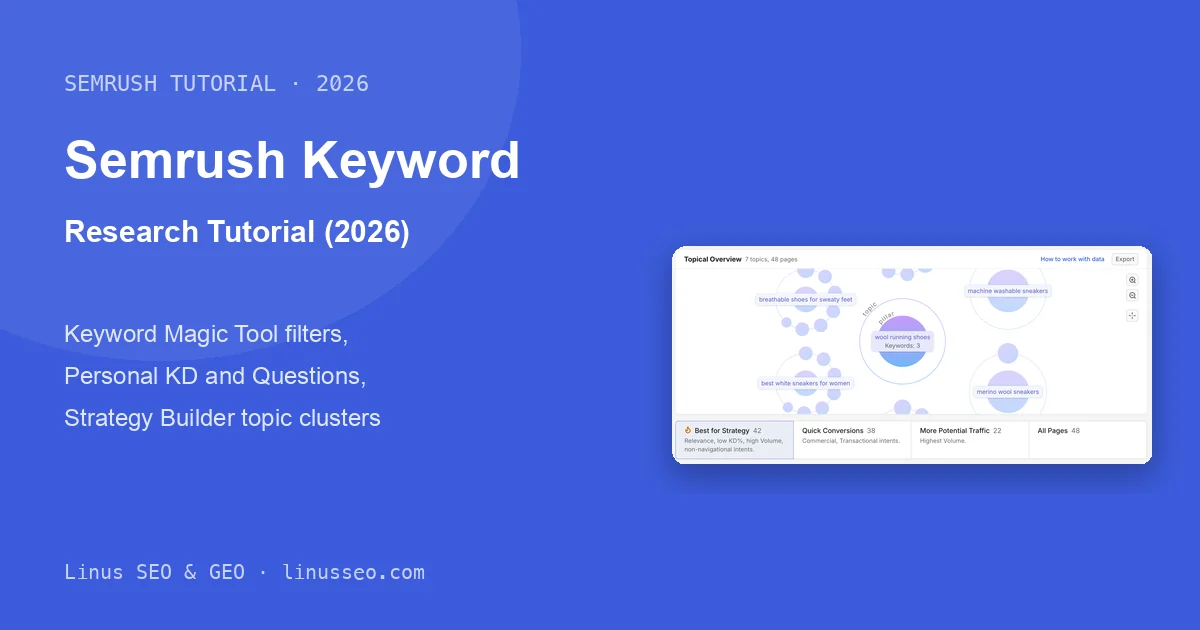
Google ranks one page for a group of keywords, so the unit of research is now the page. When two keywords return mostly the same results on Google’s first page, Google is treating them as one need, and writing two separate pages only makes them compete with each other. KSB clusters keywords on exactly this overlap: the wool sneakers strategy in this guide splits into 7 topics and 48 pages, and the merino wool sneakers pillar page alone covers 3 keywords. So to judge whether a direction is worth pursuing, look at the total volume of each topic and how many pages it needs, not at the keyword count at the top of the page. The match type section below has the numbers.
AI search splits one question into searches across subtopics, so topics need complete coverage. Google’s Search Central documentation says AI Overviews and AI Mode may use a “query fan-out” technique, issuing multiple related searches across subtopics and data sources to build a response. The long questions people ask AI mostly have no search volume data, so you cannot track them one by one, but the fan-out searches are built around the subtopics of the original question. It follows that the more completely your pages cover a topic, the more chances one of those searches has to find you. Google has not published how fan-out chooses pages. In the tool, the Topics view is good for finding coverage gaps, and the Questions view lists the phrasing closest to how people ask AI, with search volume attached.
Difficulty is now scored on how your site relates to the topic, but the method is opaque. Semrush said in 2024 that PKD uses large language models to judge how relevant a domain is to a topic, and that a closer match means a lower PKD. Our test does not fully fit that: allbirds.com is a wool shoe brand, yet its PKD for wool shoes is 53, while generic KD is only 12. Use PKD to compare candidates within one list, not as a precise number.
Topic features have limits worth knowing before you rely on them. The tool decides how topics are drawn and does not publish the method, so another tool will draw them differently. KSB clusters on Google’s current results and knows nothing about your product line. The Topics view tells you what people are discussing, not which keywords bring orders, so commercial intent still needs human judgment.
For veterans: why Semrush is moving toward topics and AI
The table is from public sources. The paragraph after it is an inference from those sources; Semrush has not described it this way.
| Date | Event |
|---|---|
| 2024-05 | Semrush launched PKD and Topical Authority and renamed Keyword Manager to Keyword Strategy Builder. The announcement says they combined Semrush data with LLMs to build a thematic vector map of every topic and how topics relate to each other |
| 2025-10-29 | Semrush One launched, bundling the SEO Toolkit and the AI Visibility Toolkit |
| 2025-11-19 | Adobe announced it would acquire Semrush for about $1.9 billion in cash, highlighting Semrush’s GEO capabilities |
| 2026-11 | Knowledge base article 617 still describes only Groups in the left panel, while the interface opens on Topics |
Inference: Semrush’s core asset is its keyword database and search volume data, and questions asked to AI have no search volume. Topics are computed from keyword data and can also be used to classify AI prompts, so they connect the keyword database to the AI visibility products. KSB’s Generate content button then links keyword selection, page planning, briefs and drafts into one workflow that stays inside Semrush.
Keyword Magic Tool: build a keyword list from one seed
When you have a core product or topic in mind, the Keyword Magic Tool answers one practical question: around that seed keyword, which variations are worth targeting, and what are their actual search volumes and ranking difficulties?
Where to find it: SEO → Keyword Research → Keyword Magic Tool. Enter your seed keyword, choose your target country database, and click Analyze.
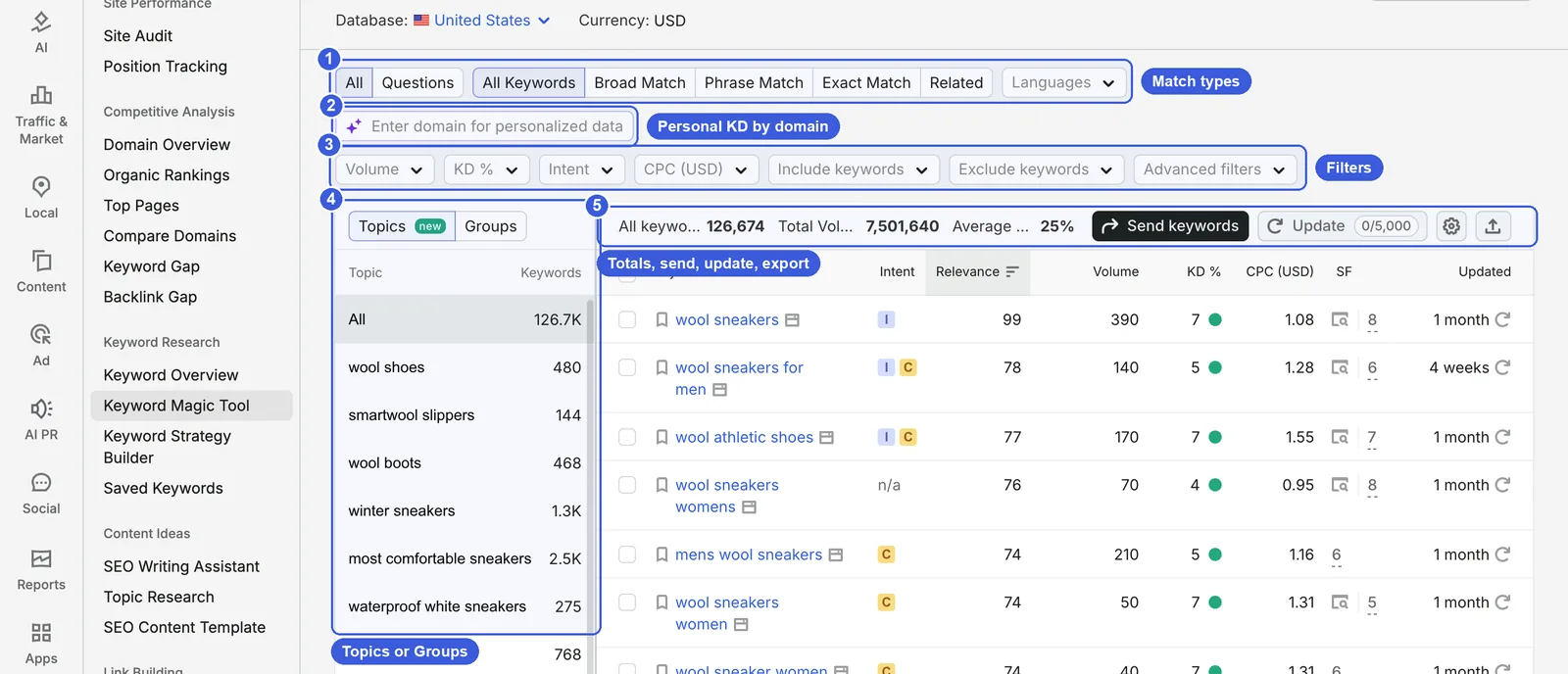
Controls
- ① Match types: You have All and Questions tabs on the left, while the buttons on the right control how strictly results stick to your seed (covered in the next section). Languages filters by keyword language.
- ② Enter domain for personalized data: Enter your domain here, and Semrush recalculates difficulty and traffic estimates specifically for your site rather than the market average. See the Personal KD section below.
- ③ Filters: Volume, KD %, Intent, CPC (USD), Include keywords, Exclude keywords, and Advanced filters. Each option is a dropdown, and they stack together.
- Volume has six preset ranges, from 1–10 up to 100,001+.
- KD (Keyword Difficulty) is Semrush’s estimate of how hard it is for a new page to break into Google’s top 10. It has six bands: Very easy 0–14%, Easy 15–29%, Possible 30–49%, Difficult 50–69%, Hard 70–84%, Very hard 85–100%.
- Intent shows what the searcher wants to accomplish. You can select multiple intents at once: Informational, Navigational, Commercial, Transactional.
- ④ Topics / Groups: Two different ways to cluster results in the left sidebar. Click any cluster and the table filters down to only those keywords.
- ⑤ Totals and actions: Shows your current keyword count, total search volume, and average KD for the active view, followed by Send keywords, Update, column settings, and export. The 0/5,000 counter next to Update tracks how many metric refreshes you have used out of your allowance.
A few table columns are worth watching:
- Relevance: The default sort order under All Keywords, scoring how closely a term relates semantically to your seed. Here, wool sneakers itself scores 99.
- SF: SERP features counts how many non-standard result elements appear on the page, such as images, video, or popular products.
- Updated: Shows when Semrush last refreshed the metrics for that row. Most rows showed “1 month” at capture time. Clicking the refresh icon on the right uses one Update credit.
Pick a match type first
This is the first place people get tripped up. The match type you select determines which set of keywords you are looking at. Here is how Semrush’s knowledge base defines each option:
| Match type | Returns |
|---|---|
| All Keywords | Broad, phrase and exact matches plus related keywords. The default in 2026 |
| Broad Match | Keywords containing the seed in any variation and word order |
| Phrase Match | The seed in its exact form, word order may vary |
| Exact Match | The seed in its exact form and order |
| Related | Semantically related keywords that may not contain the seed |
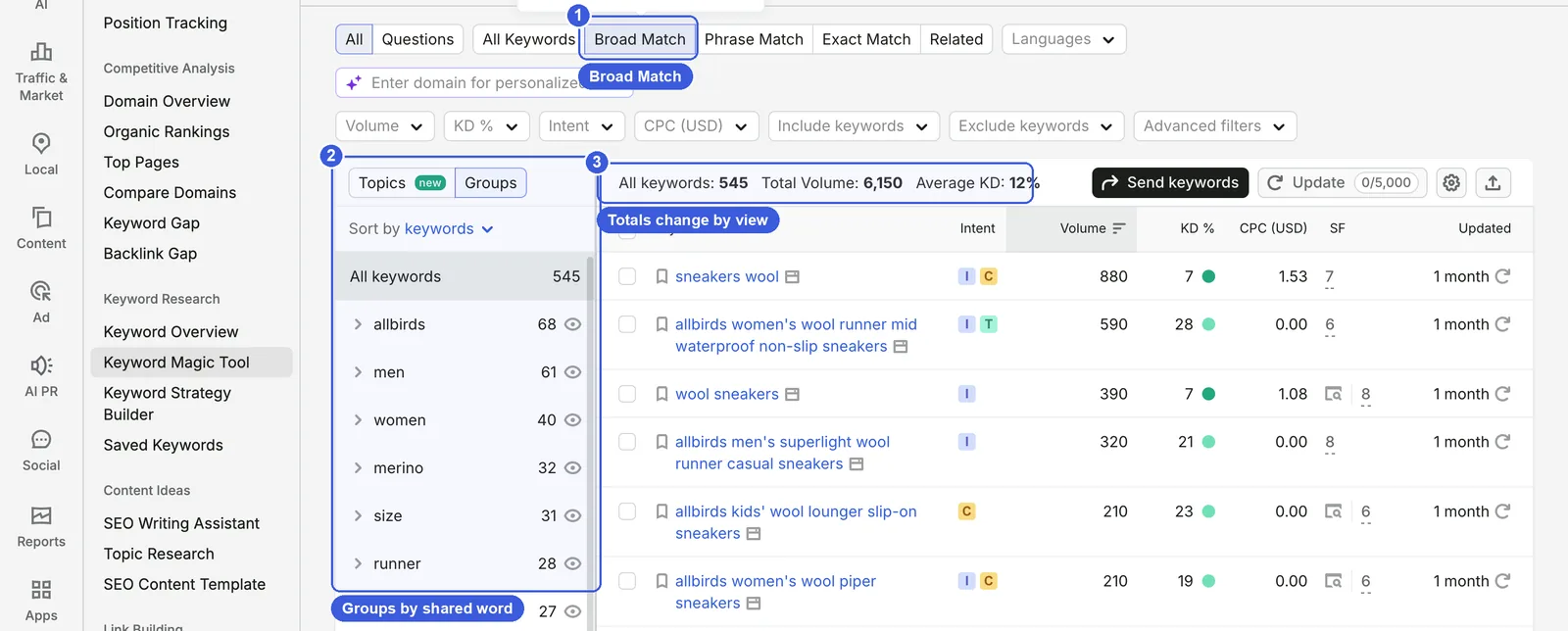
Notice how much the count swings for the exact same seed keyword depending on your view. On capture day, wool sneakers returned:
| Topics view | Groups view | |
|---|---|---|
| All Keywords | 126,674 | 652 |
| Broad Match | 135 | 545 |
Two things explain the gap. First, All Keywords includes related keywords, so most of those 126,674 terms do not contain wool sneakers at all: you get queries like most comfortable sneakers, wool slippers, and so on. Second, Topics and Groups cluster differently. Topics groups keywords with similar meaning under broader themes; Groups clusters by a shared word such as allbirds, men, women, or size. The table count changes when you switch.
Keep in mind that the total at the top only tells you how many keywords this view contains, not market demand. For actual demand, look at the combined search volume of the keywords left after you apply your filters.
How I usually use these combinations:
- For collection and product pages, start with Broad Match plus Groups. Every keyword contains the seed, and the left sidebar neatly separates terms by audience, size, and brand.
- For content ideas or adjacent categories, use All Keywords plus Topics to see semantically nearby themes.
- Related on its own casts the widest net. Use it when your seed term is too narrow to return much.
Include and exclude keywords
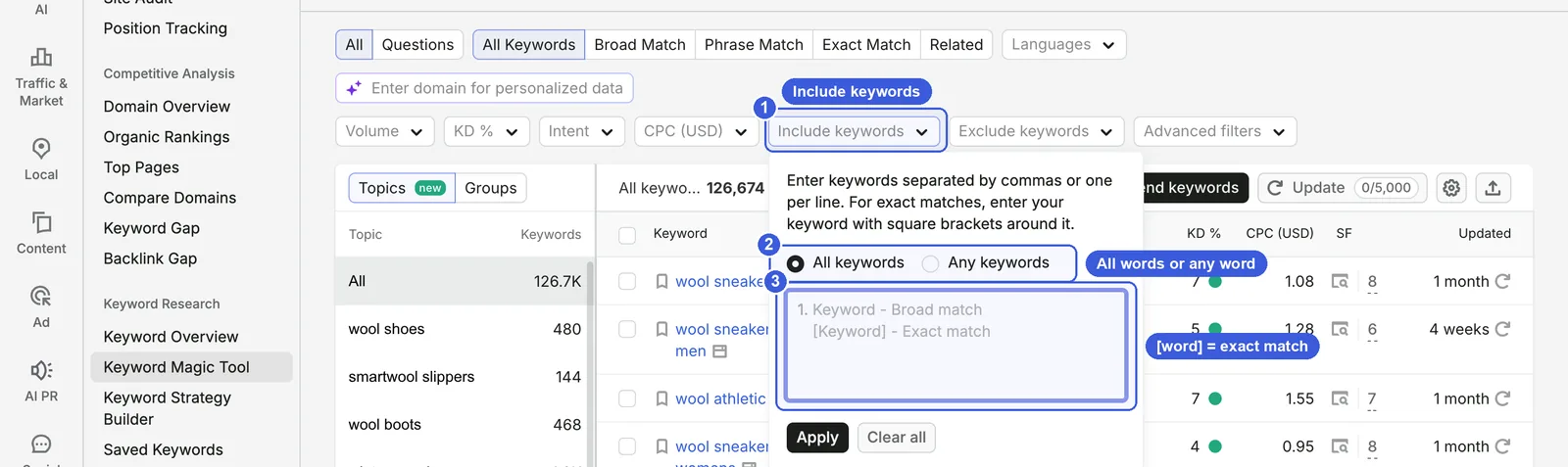
- ① Include keywords: Opens a text box where you can enter words separated by commas or line breaks.
- ② All keywords / Any keywords: All keywords requires every word you entered to appear in the query; Any keywords requires at least one.
- ③ Syntax: A plain word acts as a broad match and catches plurals and variants. Wrap it in square brackets for an exact match:
[men]matches men only, leaving out mens. - Exclude keywords works the same way in reverse, removing any keyword that contains your specified words.
Step by step
- Open Exclude keywords, enter competitor brand names such as allbirds and giesswein, and click Apply.
- Open Include keywords, choose Any keywords, and enter the audiences you sell to: men, mens, women, womens. Use brackets where singular and plural matter.
- Click Apply. The table keeps keywords with those audience words and strips out competitor brands.
Advanced filters: word count, competition, SERP features
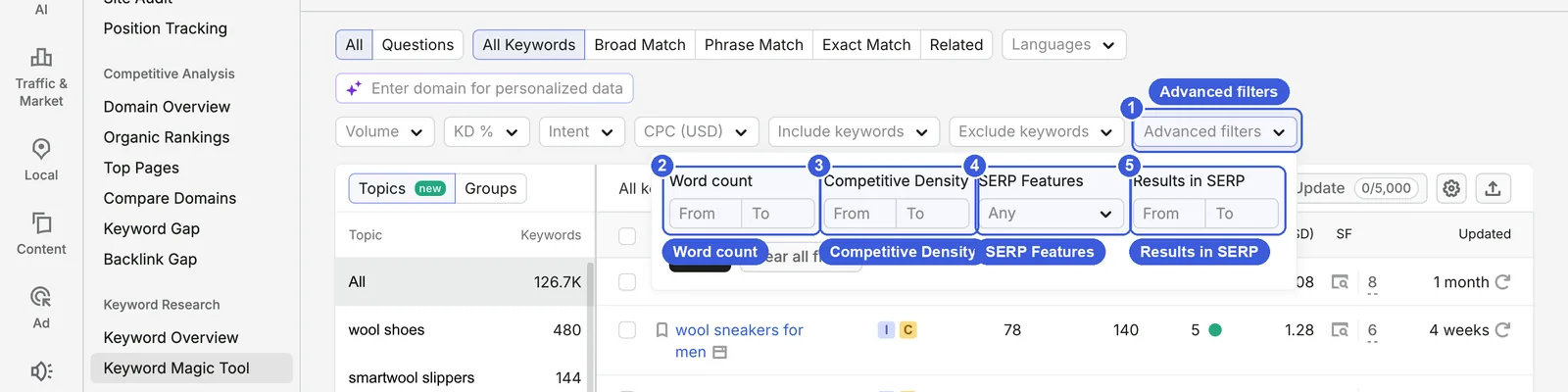
- ① Advanced filters: Four additional conditions you can fill in and apply together.
- ② Word count: The number of words in the search query. Setting “From 4” isolates long-tail keywords of four words or more.
- ③ Competitive Density: Measures how aggressively Google Ads advertisers bid on the keyword, scored on a scale from 0 to 1.
- ④ SERP Features: Filters for keywords whose search results include a specific feature.
- ⑤ Results in SERP: The total number of search results Google reports for the query, giving a rough sense of how many pages compete on the topic.
A useful filter shortcut
- Setting Word count from 5, combined with Commercial and Transactional intent, quickly surfaces long-tail queries with clear purchase intent and low competition.
Questions: how people actually ask
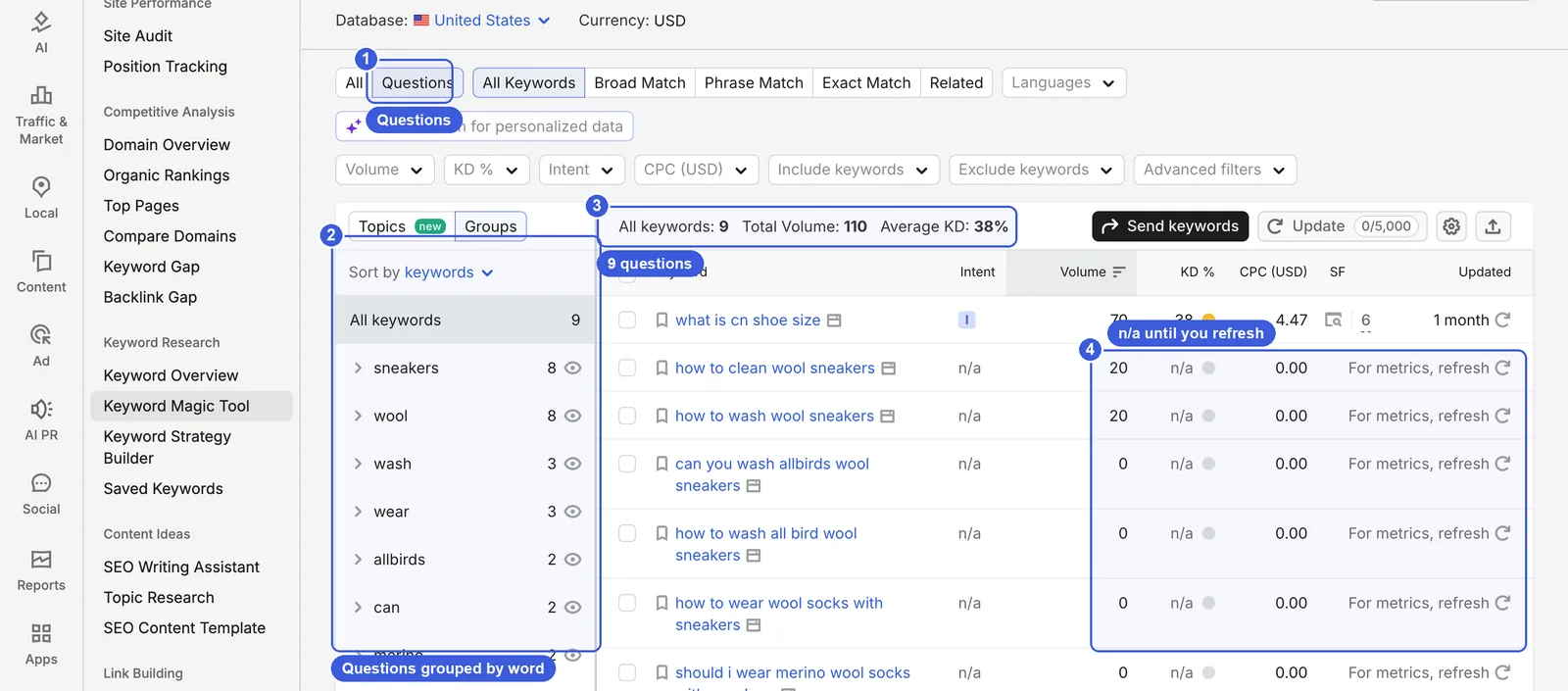
- ① Questions: Filters the table to show only question-form keywords that contain your seed.
- ② Groups: Questions are grouped by shared words as well, such as wash and wear, which tells you right away that users primarily ask about cleaning and styling.
- ③ Totals: In this example, wool sneakers had just 9 questions with total volume of 110 at capture time.
- ④ n/a: Only what is cn shoe size showed full metrics. The rest display n/a for intent and KD, with “For metrics, refresh” on the right. Remember that refreshing each row consumes an Update credit.
How to handle question data: Search volumes for questions are often tiny, frequently sitting at 0 or 20. Their real value is not immediate traffic, but revealing what prospective customers are worried about before buying. Because searchers tend to type fuller versions of these questions into ChatGPT and Perplexity, they belong in an FAQ section or a product page Q&A, with the first sentence answering the question directly.
Personal KD: how hard a keyword is for your site
KD is Semrush’s generic difficulty score. Personal Keyword Difficulty (PKD) evaluates the keyword against the domain you enter; the knowledge base describes it as how difficult it would be for your domain specifically to rank.
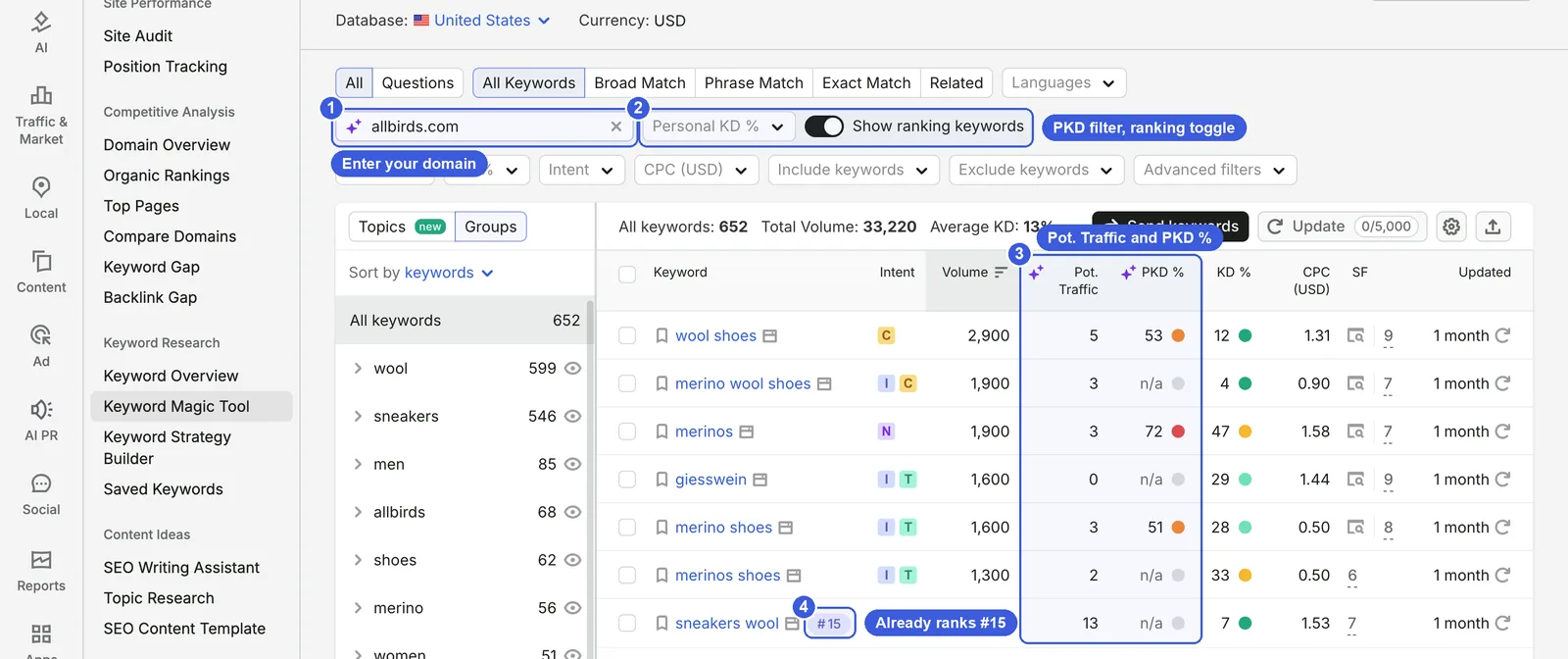
- ① Domain input: Enter your domain and press Enter. Semrush adds a
domain=parameter to the URL, so bookmarking it keeps the setting. - ② Personal KD % and Show ranking keywords: The first filters by PKD band; with the toggle on, keywords where your domain already ranks in Google’s top 100 are marked with their position.
- ③ Pot. Traffic and PKD %: Potential Traffic estimates the traffic you could gain by ranking, based on your domain’s profile.
- ④ Ranking badge: The #15 badge after sneakers wool indicates that allbirds.com ranks 15th for that term.
Two rows in the screenshot are worth a closer look:
- wool shoes has a generic KD of 12 (Very easy), but its PKD for allbirds.com is 53. Semrush says PKD uses LLMs to judge how relevant a domain is to a topic, with closer matches scoring lower. allbirds.com is a wool shoe brand, so this result does not fit that description, which suggests PKD depends on other factors Semrush has not disclosed.
- allbirds women’s wool runner mid waterproof non-slip sneakers has a PKD of 0 and Potential Traffic of 218. It is the brand’s own product term, with almost no resistance.
Semrush’s blog suggests looking for low PKD with high KD: Keywords that look hard in general but are achievable for your site are your edge over competitors. By Semrush’s logic, the reverse (low KD, high PKD) means your site lacks content on that topic, but the allbirds example shows this does not always hold. Turn on Show ranking keywords and check where you actually rank.
A practical caveat: Many rows show n/a for PKD until refreshed. Semrush says PKD uses large language models to judge how relevant a domain is to a keyword, and has not published the method. That makes it better for comparing candidates within one list rather than relying on it as a precise number.
Send keywords and export
- Send keywords: Check keywords in the table first, then click Send keywords. At capture time it offered two destinations:
- Saved Keywords: A list for collecting keywords across Semrush tools, available under Keyword Research in the SEO menu.
- Position Tracking: Adds the keywords directly to a tracking project to monitor daily rankings.
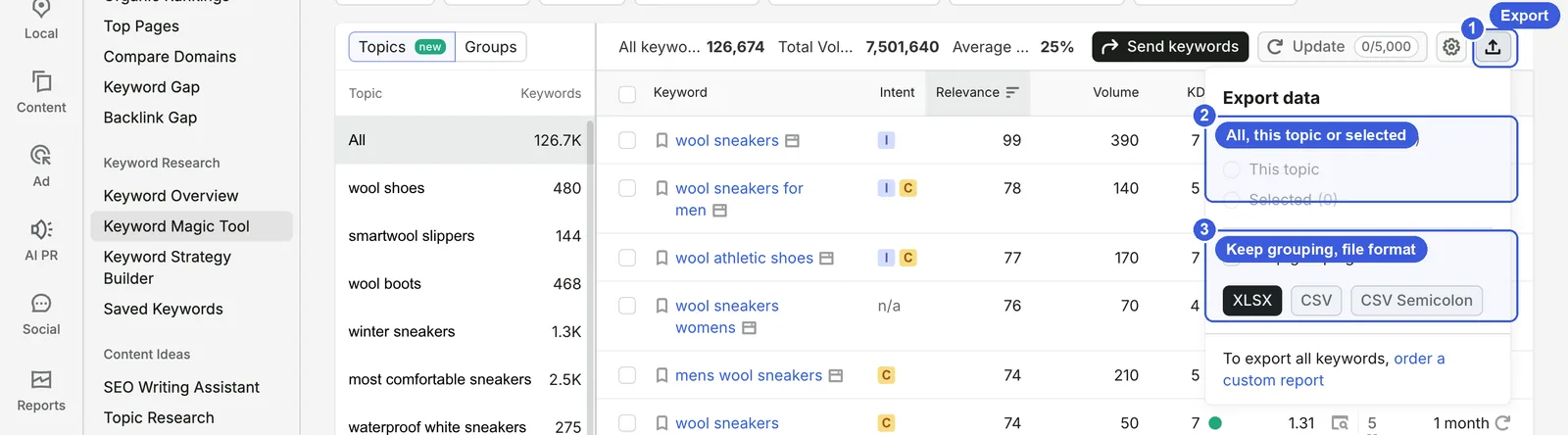
- ① Export (top-right icon): Opens the Export data panel.
- ② Scope: All exports up to 50K keywords, This topic exports only the cluster selected in the left panel, and Selected exports the checked rows. Beyond 50K you need to order a custom report.
- ③ Grouping and format: Keep grouping adds the left-panel cluster to the export. Formats are XLSX, CSV, and CSV Semicolon; the semicolon version opens cleanly in Excel locales that use commas as decimal separators.
A complete pass and day-to-day use
- Enter your seed and choose your target country.
- Pick Broad Match and switch the left panel to Groups to see how the keywords split (audience, size, material, brand).
- Use Exclude keywords to remove competitor brands and unrelated categories.
- Set Intent to Commercial and Transactional, and KD % to the bands up to 49%.
- Enter your domain, turn on Show ranking keywords, and sort by PKD and Potential Traffic. Keywords you already rank for show their position, such as #15.
- Check off the keywords you will target and send them to Saved Keywords, or export This topic for the content team.
- Switch back to All Keywords plus Topics and look for adjacent themes worth their own articles.
How to use it for SEO
- Planning a collection page: With Broad Match plus Groups, each group usually maps to a filter dimension. Put the highest-volume keyword of the group in the collection title and the rest into filters, the FAQ, and internal anchor text.
- Finding page-two quick wins: Enter your domain, turn on Show ranking keywords, and pick out keywords badged #11 to #20 (export and filter in a spreadsheet if the list is long), then check PKD. Work on the low-PKD ones first.
How to use it for GEO
- Questions in the Questions view are close to how people phrase prompts to AI. Write them up as an FAQ using the user’s wording and answer in the first sentence, which makes the answer easy for AI to quote whole.
- Adjacent themes in All Keywords plus Topics are often the sub-questions AI brings up when answering the main topic. Each page covering one of them is another chance to be cited.
Caveats
- Volume is a 12-month monthly average. For seasonal categories, check the monthly trend in Keyword Overview.
- From late October 2026, Google changed how it responds to automated queries and Semrush’s data collection was affected, so keyword counts and estimates may run low for a while. See the note at the end of the main guide.
For advanced users: URL parameters and limits
The Keyword Magic Tool keeps its view state in the URL, so you can open a specific combination directly or share it:
| Parameter | Meaning |
|---|---|
q=wool%20sneakers |
Seed keyword |
db=us |
Database (country) |
type=all |
All Keywords; drop it for Broad Match |
mode=0 / mode=1 |
Topics view / Groups view |
questions=true |
Questions only |
domain=allbirds.com |
Calculate PKD and Potential Traffic for this domain |
Semrush remembers your last match type. When capturing screenshots, a URL without type=all sometimes switched back to All Keywords on its own, and Broad Match had to be clicked again.
Limits: the 0/5,000 next to Update counts metric refreshes, and single-row refreshes count too. Exports cap at 50,000 keywords; beyond that you need a custom report.
Keyword Strategy Builder: assign keywords to pages
KSB answers the next question: how should this set of keywords be split into pages, and which page leads? It used to be called Keyword Manager, and the URL still says keywordmanager.
Where to find it: SEO → Keyword Research → Keyword Strategy Builder. Pick a mode, enter seeds or a domain, choose a country, and click Create.
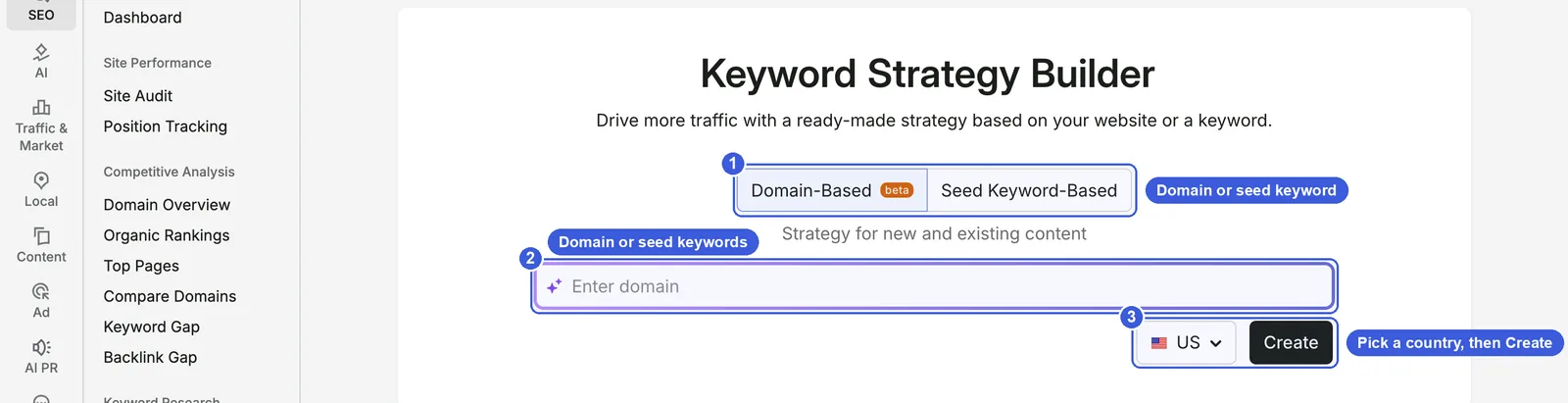
Controls
- ① Two modes:
- Domain-Based (beta): Enter your site and Semrush analyzes existing pages, returning Pages to improve and Topics to create content.
- Seed Keyword-Based: Enter up to five seed keywords and Semrush builds topics, pillar pages, and subpages around them.
- ② Input: A domain or seed keywords, depending on the mode.
- ③ Country and Create: Pick the database and click Create. Each strategy uses one credit; when this account created one in seed mode on November 6, 2026, the button read 0/50. Generation takes a while: about 30 minutes when this account ran it, with a five-step progress display (analyzing SERPs, collecting synonyms, and so on). You can leave the page and come back later.
The Keyword lists section below shows every strategy created on the account. If your team shares an account, colleagues’ lists appear here too, so check for client keywords before taking screenshots.
Topical overview and strategy filters
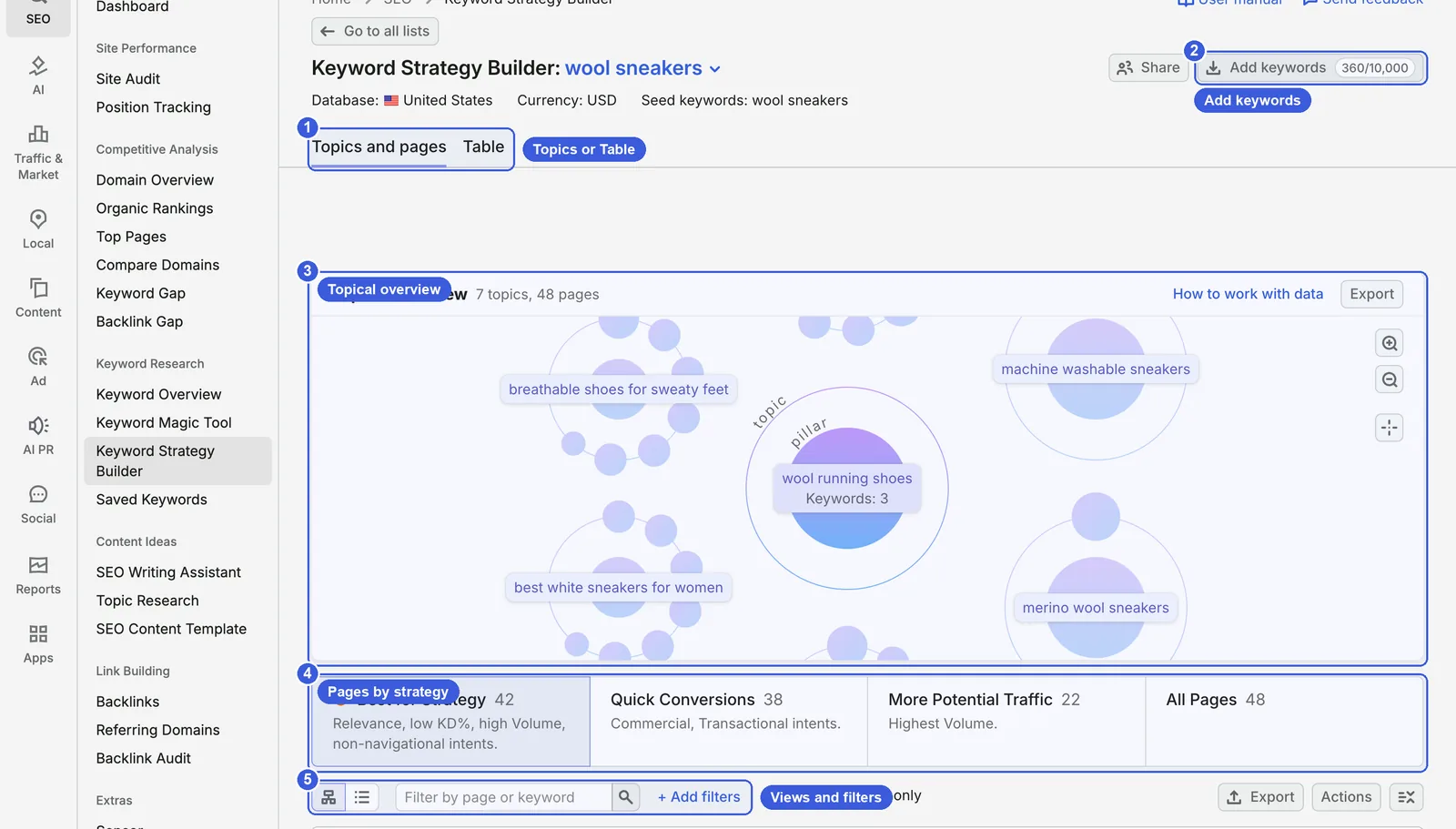
- ① Topics and pages / Table: Two views; the Table view is covered below.
- ② Add keywords: Add more keywords to the strategy. 360/10,000 is the current count and the per-strategy limit.
- ③ Topical Overview: A bubble chart representing your topic cluster. Large circles are topics, small ones are pages, and size reflects search volume. The buttons on the right zoom in and out. Here wool sneakers became 7 topics and 48 pages.
- ④ Pages by strategy: Four cards decide which pages are listed below.
- Best for Strategy (42): Relevance, low KD %, high volume, non-navigational intent.
- Quick Conversions (38): Commercial and transactional intent.
- More Potential Traffic (22): Highest volume.
- All Pages (48).
- ⑤ Views and filters: The two icons switch between structure and list views; the search box finds pages or keywords; + Add filters adds Topic, Volume, KD %, and Intent filters; Show favorites only shows pages you starred.
Topics, pillar pages and subpages
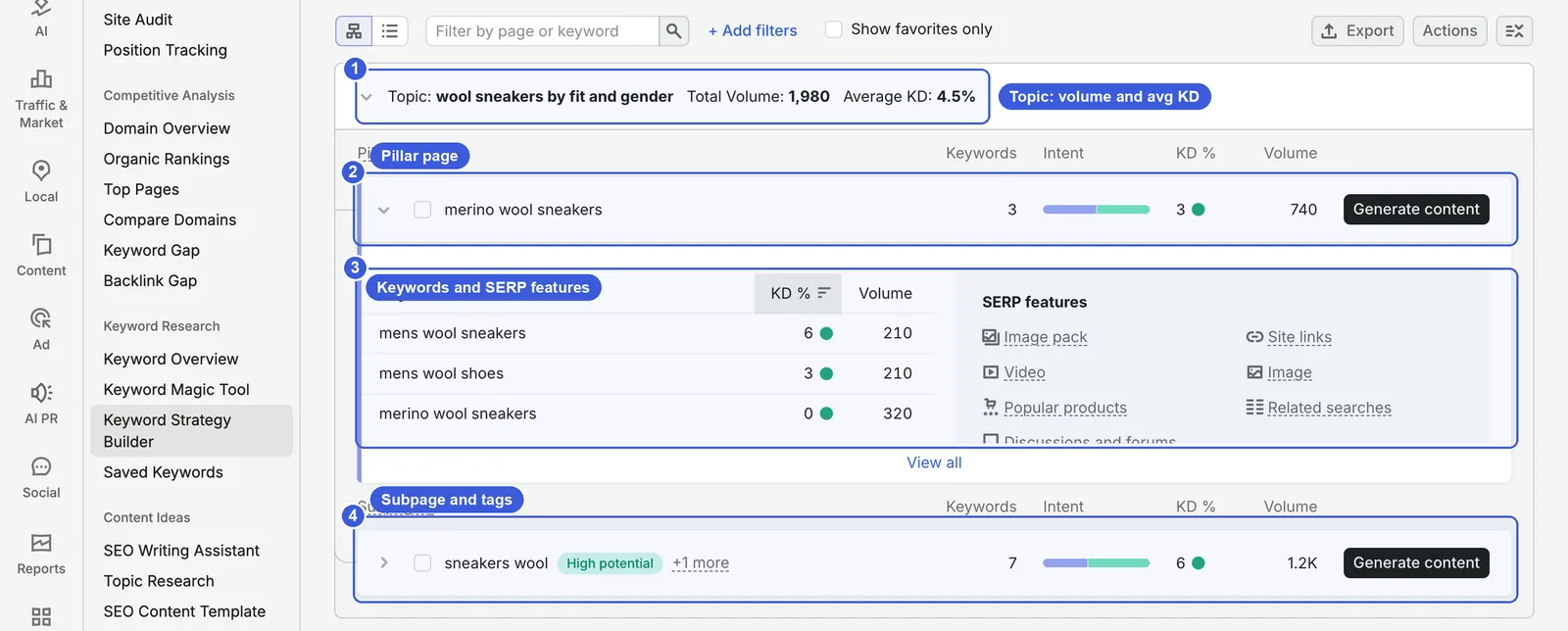
- ① Topic: Here, wool sneakers by fit and gender, total volume 1,980, average KD 4.5%.
- ② Pillar page: The main page of the topic, targeting its broadest, highest-volume keywords. Here it is merino wool sneakers with 3 keywords and 740 volume. The colored bar shows the intent mix. Generate content takes the keyword set into Semrush’s writing tools: an article opens in Content Optimizer, a brief in SEO Brief Generator.
- ③ Keywords and SERP features: Expand the pillar page to see its keywords with KD and volume on the left, and the SERP features on those results on the right, such as image pack, video, popular products, and discussions and forums. View all expands the full details.
- ④ Subpages: More specific long-tail pages that link back to the pillar. The High potential badge after sneakers wool is a Semrush tag; +1 more means there is another.
How KSB groups keywords: According to Semrush’s blog, KSB clusters by search intent and SERP similarity. When two keywords share many of the same top results, they go on the same page. Google treats them as one need, so one page is enough, and splitting them would make the pages compete against each other.
Table view: work with keywords in bulk
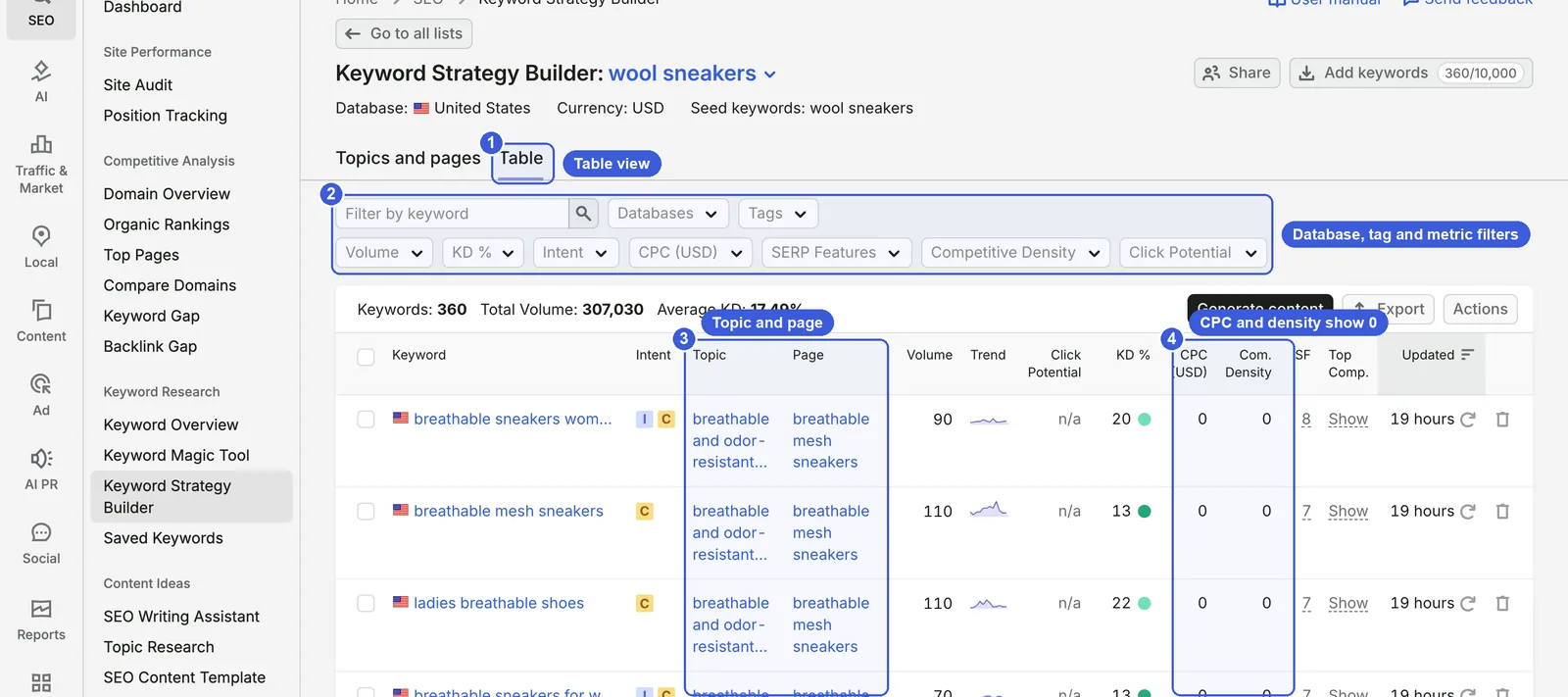
- ① Table: All 360 keywords of the strategy in one flat list, total volume 307,030, average KD 17.49%.
- ② Filters: The first row filters by keyword, database, and tag; the second by Volume, KD %, Intent, CPC, SERP Features, Competitive Density, and Click Potential.
- ③ Topic and Page: Which topic and page each keyword belongs to. Exported, this is a ready-made keyword mapping sheet.
- ④ CPC and Com. Density: At capture time these showed 0 for every keyword, and Click Potential showed n/a. Check bids and competition in the Keyword Magic Tool or Keyword Overview instead.
Tick keywords to add or remove tags, delete keywords, generate content, or export. Export formats match the Magic Tool: XLSX, CSV, and CSV Semicolon.
The full planning pass and day-to-day use
Step by step
- On the home page, choose Seed Keyword-Based, enter one to five seeds, pick a country, click Create, and wait for it to finish.
- Start with Best for Strategy, which balances difficulty and volume, as your first batch of pages.
- Expand each topic and map the pillar page to a collection page or a topic article on your site, and subpages to subcategories, product pages, or blog posts.
- Expand pages and check SERP features. Keywords with popular products belong on collection and product pages; keywords with discussions and forums suit articles, or joining the conversation on communities like Reddit.
- Switch to Table view, add your own tags (such as “existing page” and “to build”), and export for the content team.
Less obvious features
- Domain-Based mode suits sites that already have a lot of content: it tells you which existing pages are worth improving before telling you which topics are missing.
How to use it for SEO
- Before launching a new category, run it through KSB to see how many pages Semrush splits it into. The pillar is usually the collection page; subpages become filtered collections or topic articles.
- When two of your pages compete for the same keyword, check whether KSB puts those keywords on the same page. If it does, merging them usually beats optimizing both.
How to use it for GEO
- KSB splits a topic into subpages so each sub-question has its own page. Whether AI cites a given page still depends on whether it has an answer that can be lifted out cleanly, so open every subpage with the conclusion.
- Check whether expanded pages show discussions and forums in their SERP features. AI answers on those keywords often cite communities like Reddit and Quora too, so besides your own page, consider having a presence there.
Caveats
- Clustering only looks at SERP similarity and knows nothing about your product line. Review the structure before you use it, especially where different product lines end up in one topic.
- The Updated column in Table view shows when each keyword’s metrics were refreshed; it read 20 hours at capture time. If you come back to a strategy months later, refresh before deciding anything.
For advanced users: KSB limits
- Up to 5 seed keywords.
- Up to 10,000 keywords per strategy (the 360/10,000 on the page). Semrush’s knowledge base says all plans can store up to 200,000 keywords across all lists.
- Each strategy uses one credit; this account showed a limit of 50.
- Export formats: XLSX, CSV and CSV semicolon.
How the two tools fit together
| Step | Tool | What to do |
|---|---|---|
| 1. Expand | Keyword Magic Tool | Broad Match plus Groups for seed variants; All Keywords plus Topics for adjacent themes |
| 2. Filter | Keyword Magic Tool | Exclude brands, filter by intent, KD and PKD, use Questions for FAQs |
| 3. Save | Saved Keywords | Tick and Send keywords to keep them for other tools |
| 4. Assign | KSB | Create a strategy from seeds, add keywords if needed, review topics, pillars and subpages |
| 5. Ship | KSB Table view | Tag and export as a keyword mapping sheet for the content team |
| 6. Track | Position Tracking | Send the core keywords of live pages to Position Tracking |
The step you can least afford to skip is the manual review after step 4. KSB clusters purely on SERP similarity and knows nothing about your product lines, so review each topic before exporting to avoid putting different categories on one page and having your own pages compete.
Screenshots and walkthroughs reflect the November 2026 interface using the seed keyword wool sneakers (US database) and the Shopify site allbirds.com.
FAQ
What’s the difference between the Keyword Magic Tool and Keyword Overview?
Keyword Overview shows the details of one keyword: volume, KD, intent, trend, and SERP analysis. The Keyword Magic Tool expands one seed into thousands of related keywords to build a list. I usually shortlist promising terms in the Magic Tool first, then check the important ones in Keyword Overview.
Why do some keywords show n/a for KD and intent?
Semrush has not calculated metrics for them yet, which is common for very low-volume long-tail keywords and questions. Click the refresh icon on the row, or tick them and click Update. Refreshing uses Update credits.
Should I look at PKD or KD?
Use PKD when choosing keywords for your own site, because it is calculated for your domain, though the method is not public, so use it to compare candidates. Use KD to compare overall market difficulty or when you do not have a site yet. Low PKD with high KD marks opportunities that are easier for you than for most competitors.
Does every KSB pillar page need to be a new page?
No. A pillar can be an existing collection page, a topic article, or a section of your home page. What matters is that one set of keywords is handled by one page, not split across several that compete.
Can I use these tools on a free account?
A free account gets only a few lookups a day and reports show only the first rows, which is not enough for regular work. KSB strategies, refresh credits, and export limits vary by plan; check Semrush’s pricing page.
Overall, the Keyword Magic Tool is an everyday tool for sites of any size, while KSB earns its place when you’re planning a multi-category structure or organizing content across dozens of pages. If your site has only a handful of product pages, filtering in the Magic Tool and working in a spreadsheet is usually enough.
How to Use Semrush for Keyword Research